
Samsung Calendar
Screenshots
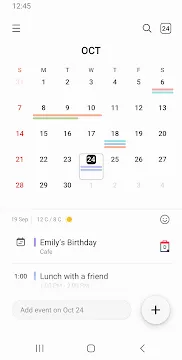
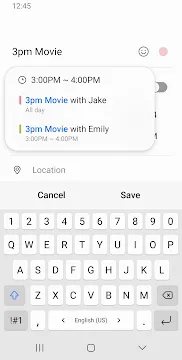
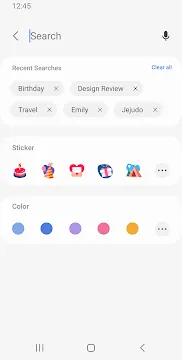
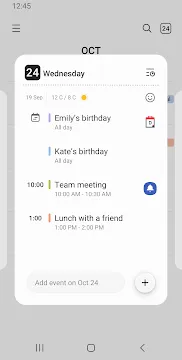
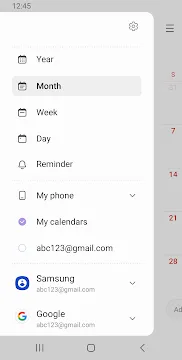
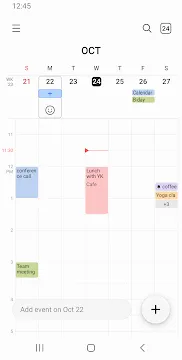
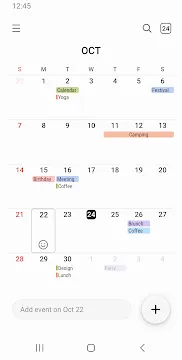
Samsung Calendar is a comprehensive scheduling tool built specifically for Galaxy users. It helps you stay organized without the need for complex setups. This application comes pre-installed on your device. It integrates deeply with the One UI interface to provide a smooth experience. You can manage your work meetings, personal anniversaries, and daily tasks in one place. The interface is clean and easy to navigate. It uses simple gestures to switch between views. Whether you need a monthly overview or a detailed daily schedule, this tool adapts to your needs.
Getting Started with Samsung Calendar
Setting up your schedule is simple because the app is already on your phone. You do not need to download it from a store. When you first open it, you see a clear layout. You can start adding events immediately by tapping on any date. The app allows you to create events with minimal taps. You can add titles, locations, and specific times quickly.
- Open the app from your app drawer.
- Select a date on the grid.
- Tap the plus icon to enter details.
- Hit save to store your event.
This process ensures you never miss an appointment. The app also supports different time zones. This is helpful if you travel often or work with people in other countries. You can even set multiple alerts for a single event. These reminders make sure you are always prepared.
Syncing Samsung Calendar with Other Accounts
One of the best features is the ability to sync multiple accounts. You might have work meetings on Outlook and personal plans on Google. This app brings them together effortlessly. You can view all your schedules in a single window. This prevents double-booking yourself.
To sync your accounts, follow these steps:
- Open the menu in the top corner.
- Go to the settings gear icon.
- Choose the manage calendars option.
- Select add account and choose your provider.
Once you log in, your events appear automatically. The sync happens in the background. If you change a date on your computer, the app updates itself. This ensures your phone always has the latest information. You can also color-code different accounts. This helps you distinguish between work and home at a glance.
Customizing Your Samsung Calendar View
Every person has a different way of looking at time. This app offers many ways to display your schedule. You can choose a year, month, week, or day view. Swiping horizontally moves you between months or weeks. This gesture feels natural and fast.
The app also lets you change the look of your grid. You can show week numbers or hide declined events. Some people prefer a dark theme to save battery. Others like a bright look for clarity. You can adjust these settings to match your preference.
- Year View: Good for long-term planning and birthdays.
- Month View: Ideal for seeing your general availability.
- Week View: Perfect for managing a busy work week.
- Day View: Best for focusing on hourly tasks.
You can also add stickers to your events. This adds a personal touch to your planning. If you have a doctor’s appointment, you can add a medical icon. It makes the calendar look more engaging and easier to read.
Advanced Productivity with Samsung Calendar
This tool is more than just a list of dates. It includes smart features to help you stay productive. For example, it integrates with the Samsung Reminder app. If you have a task that doesn’t need a specific time, you can add it as a reminder. These reminders show up right alongside your calendar events.
Another great feature is the weather integration. You can see the forecast for the upcoming week on your calendar grid. This helps you plan outdoor activities or travel. If it looks like rain, you might move your park visit to a different day.
If you use a device with an S Pen, you can write directly on the calendar. This mimics the feel of a paper planner. You can circle dates or jot down quick notes in the margins. This makes the digital experience feel more personal. It is a unique way to interact with your schedule.
Sharing Schedules Using Samsung Calendar
Planning with others is easier when you share your schedule. You can create shared calendars for family or coworkers. This requires a Samsung account. Once set up, everyone in the group can see the events. You can invite people via their email or phone number.
When someone adds an event, it appears on your phone instantly. This is great for managing family chores or team deadlines. You can also share individual events. If you have a dinner party, you can send the invitation through the app.
- Create a shared calendar in the settings.
- Invite participants through the menu.
- Set permissions for who can edit events.
- Receive notifications when others make changes.
This collaborative approach saves time on messaging back and forth. Everyone stays on the same page without extra effort. It simplifies group coordination significantly.
Conclusion
Samsung Calendar is a reliable tool for anyone using a Galaxy device. It combines simplicity with powerful features. You can sync multiple accounts and customize your view easily. The app helps you manage your time without adding stress. Its integration with other Samsung services makes it very efficient. By using this app, you stay organized and ahead of your schedule. It is a practical solution for daily planning and long-term goals.